
Use a DF-IP SOCKS5 Proxy in Proxifier for Selected Applications
Proxifier can be useful when an application lacks suitable proxy controls or ignores Windows system settings. This guide uses SOCKS5 in Proxifier for Windows v4. Start with one selected application before extending the rules to more programs.
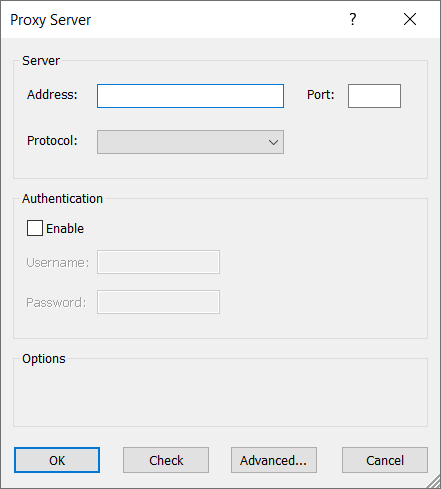
Image credit: Proxifier's official server configuration guide. This blank dialog contains no working connection details. The interface may differ between versions.
Prepare the DF-IP connection
For static residential proxies, copy an active purchased record's IP, matching protocol port, proxy_username, and proxy_password. For dynamic residential proxies, choose the region, protocol, and session options before extraction. The default output is username:password@host:port; preserve the full generated username and password. These are proxy credentials, not your website password or API key.
| Field | Required value |
|---|---|
| Host | Static IP or dynamic gateway, without a URL scheme |
| Port | Static http_port for HTTP or s5_port for SOCKS5; the selected protocol's extracted port for dynamic proxies |
| Username and password | Complete credentials from the same connection; do not mix extraction results |
For automated retrieval, see static record queries and dynamic extraction.
Add the server and application rule
Under Profile → Proxy Servers, add the address and port, choose SOCKS Version 5, enable authentication, enter credentials, and run Check. Under Profile → Proxification Rules, add an application rule whose action uses that proxy. See the official server and rule documentation.
Browse to the actual executable rather than guessing from a shortcut name. Rules match from top to bottom, so place the intended rule before broader rules that would capture it. For the initial test, keep Localhost direct and leave unmatched traffic on a Direct default action. That gives you a controlled way to check one program.
Why this guide uses SOCKS5
Proxifier's HTTPS option refers to HTTP CONNECT; the label does not by itself mean the connection to the proxy uses TLS. This walkthrough avoids that naming ambiguity by pairing SOCKS5 with its matching port. If you only have HTTP details, verify the client's supported configuration before creating a separate setup.
Confirm the rule is actually used
Start the target program and inspect its connection entries or logs for the selected proxy. Then verify the exit and destination from within that program. A successful server Check does not prove that the application rule matched. If the log says Direct, inspect executable matching and rule order first.
For the first diagnostic run, avoid configuring both an internal application proxy and another Proxifier layer at the same time. Choose a clear route and record previous settings so you can restore them.
Use the timeout guide if the connection fails. For separate browser profiles with their own proxies, see the fingerprint browser tutorials. Obtain proxy details from the DF-IP console.