
Set Up a DF-IP HTTP Proxy on Windows 11: Authentication and Verification
Windows 11 manual proxy settings can direct applications that honor system settings to an HTTP proxy host and port. This screen has no universal username/password storage fields: authentication still depends on the application. Setting it does not mean every program on the computer will use the proxy.
Prepare the DF-IP connection
For static residential proxies, copy an active purchased record's IP, matching protocol port, proxy_username, and proxy_password. For dynamic residential proxies, choose the region, protocol, and session options before extraction. The default output is username:password@host:port; preserve the full generated username and password. These are proxy credentials, not your website password or API key.
| Field | Required value |
|---|---|
| Host | Static IP or dynamic gateway, without a URL scheme |
| Port | Static http_port for HTTP or s5_port for SOCKS5; the selected protocol's extracted port for dynamic proxies |
| Username and password | Complete credentials from the same connection; do not mix extraction results |
For automated retrieval, see static record queries and dynamic extraction.
Configure the HTTP connection
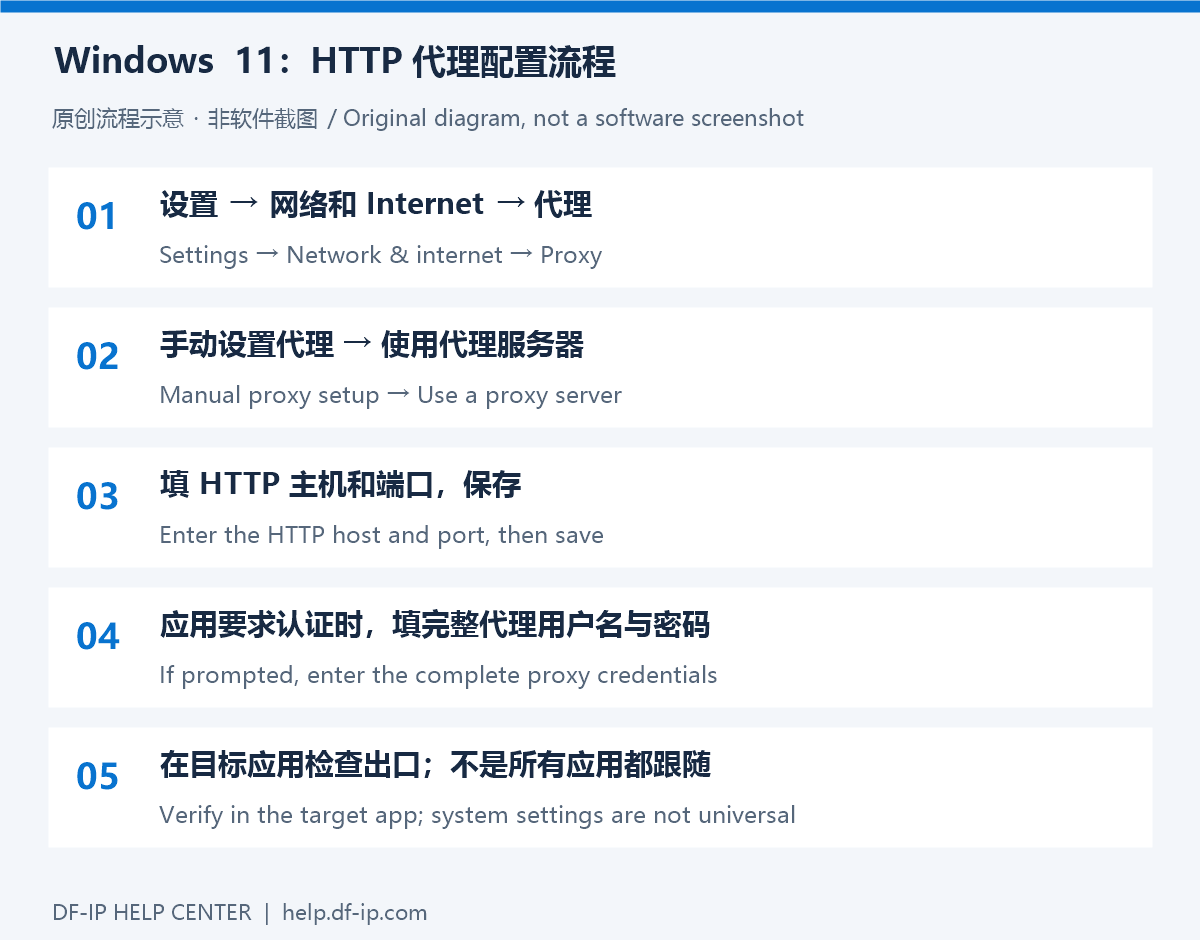
Open Settings, then Network & internet, then Proxy. In manual setup, configure the proxy server with the HTTP host and port and save. This navigation follows Microsoft's Windows proxy guide; labels can differ by display language.
Record your previous manual settings and exceptions first. Enter only the host in the address field, not the complete connection string. The automatic script field expects a PAC script address, not a DF-IP extraction API or an ordinary proxy string.
Handle authentication
If the browser presents a proxy authentication dialog, enter the complete credentials from that DF-IP connection. A website login password is not a substitute. If no prompt appears, 407 responses continue, or the application ignores system settings, use its own supported proxy configuration or follow the Proxifier guide. Do not put a SOCKS5 port into this manual HTTP setup.
Verify and restore
Inside the intended application, open a trusted exit-check page and record the address, then test the actual destination and its resources. Check a second application separately: a different result may reflect independent network settings rather than a failed save.
For dynamic proxies, the gateway can differ from the observed exit. Preserve the extracted connection throughout a continuous test. When finished, restore the settings you recorded instead of blindly clearing a previously configured proxy.
If even a basic page fails, check the HTTP port, validity, and credentials before following the timeout guide. Obtain current connection details from the DF-IP console, keeping credentials out of screenshots and shared reports.