
Client --- Quick Start
Learn how to download, register, log in, and start using the DF-IP Windows client for static and dynamic proxy IP workflows.
This tutorial will guide you through the complete DF-IP client workflow. Even if this is your first time using proxy IPs, you can get started successfully within 3 minutes.
1. Preparation Before You Start
Before getting started, please complete the following preparations:
- Download and install the Windows client (please go to the homepage at www.df-ip.com to download and install it).
- Register a DF-IP account.
- Log in to the client and start using the available features.
2. Register and Log In to Your Account
Open the DF-IP client and go to the registration page:
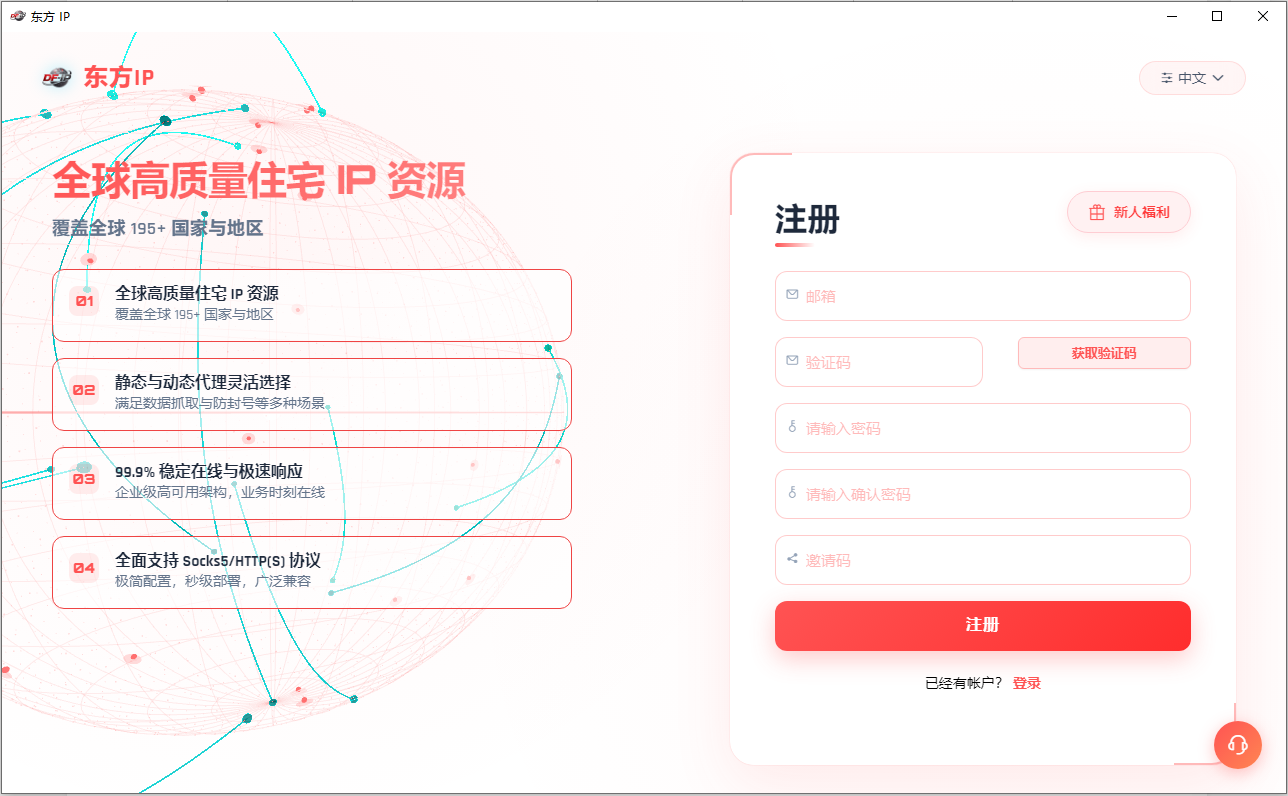
Register a DF-IP account with your E-Mail and log in. You can then start using proxy IPs.
3. Main Client Features
After logging in, you will enter the main client interface:
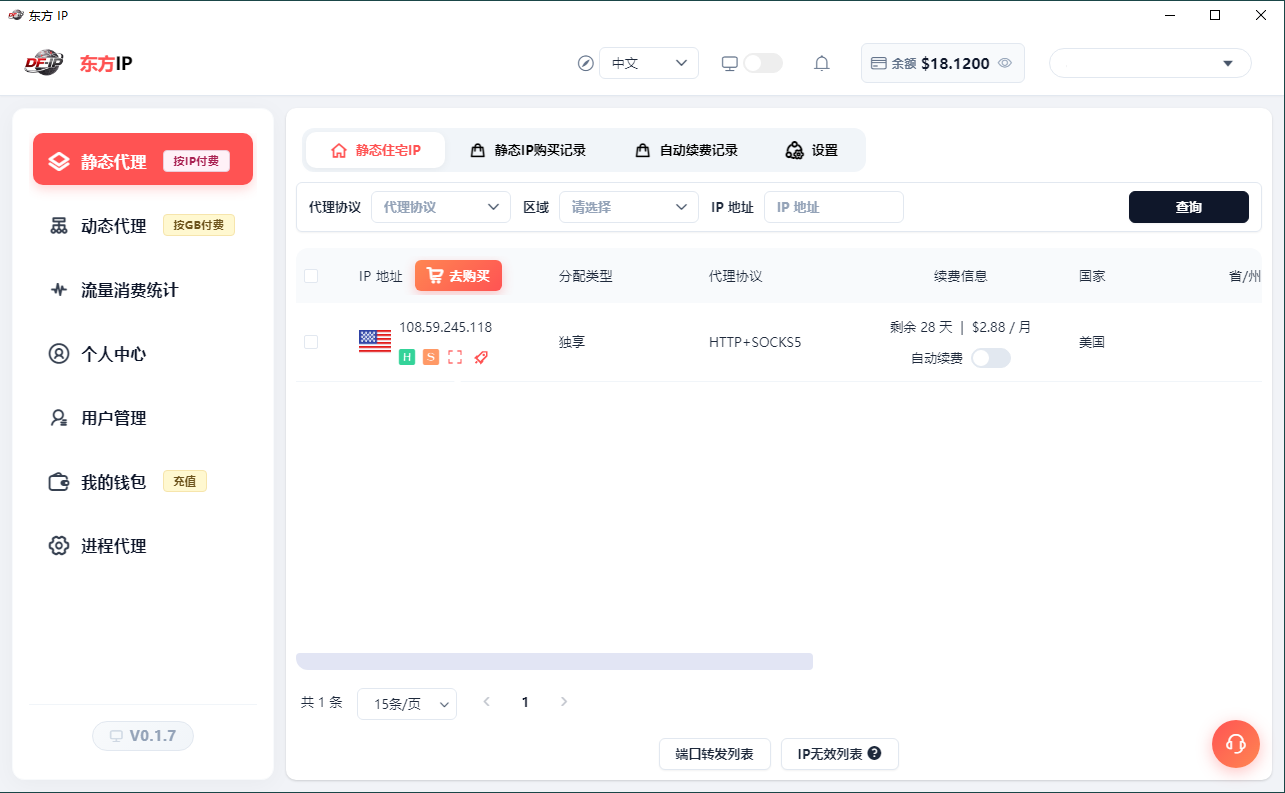
The left side of the main interface is the feature bar. The main entry points for using proxy IPs are the "Static Proxy" and "Dynamic Proxy" sections.
1. Static Proxy
Go to the static proxy IP purchase page:
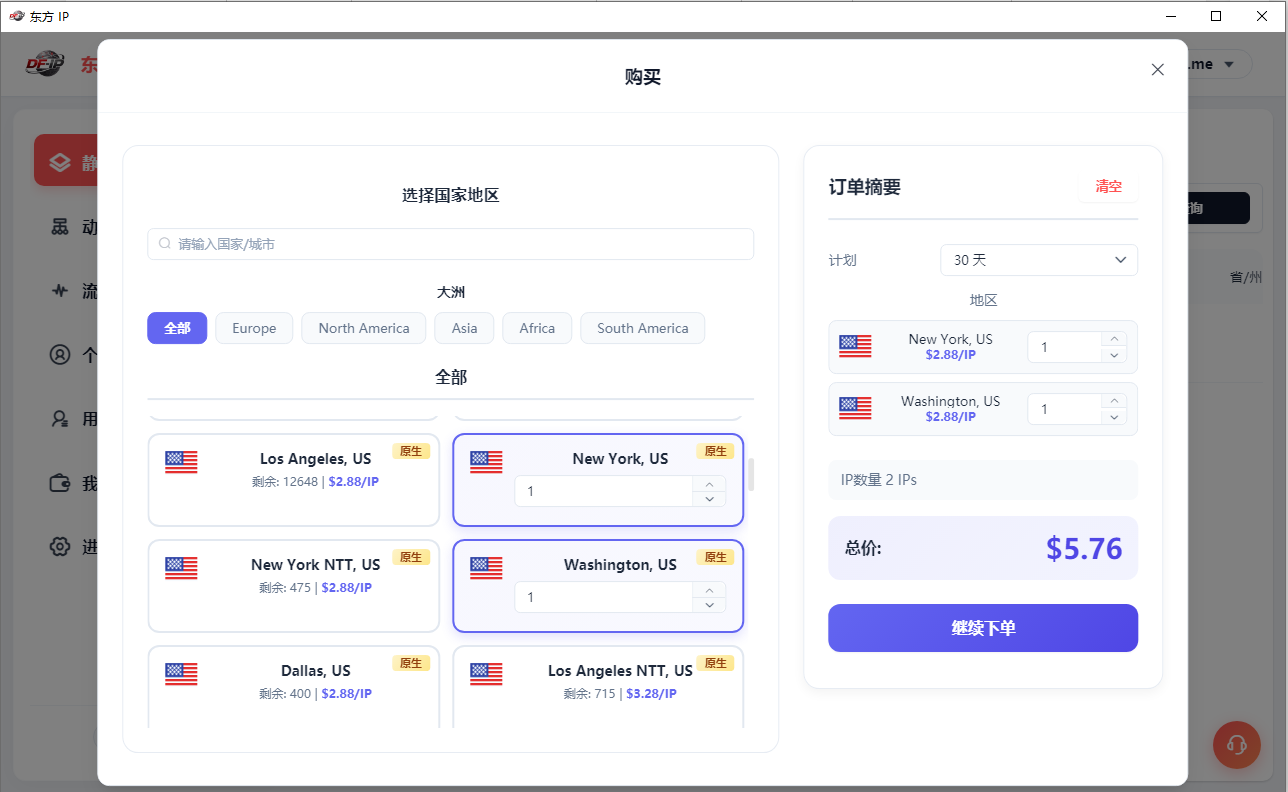
After selecting the region and purchase quantity, continue with the order to purchase static residential proxy IPs.
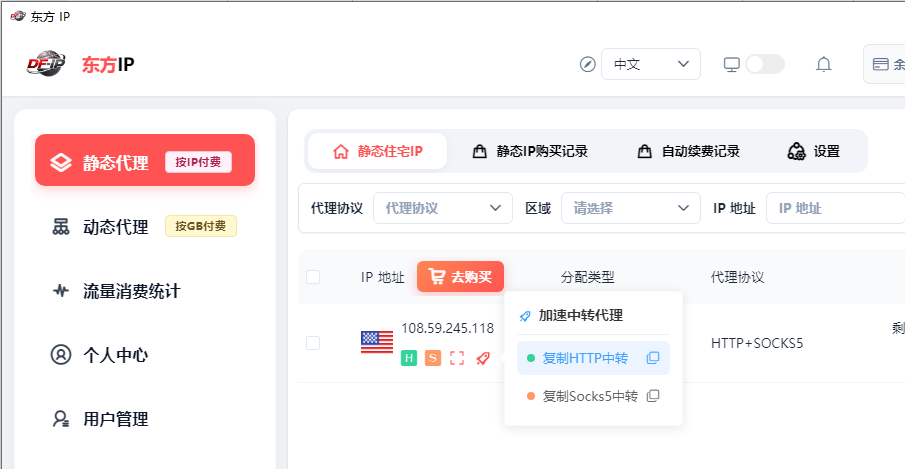
After the purchase is successful, the proxy IPs will be displayed in the list. Under each proxy IP, there are several icons: H, S, [ ], and a small rocket icon. They are used to copy the HTTP proxy, SOCKS5 proxy, QR code, and accelerated relay proxy IP, respectively.
2. Dynamic Proxy
Go to the dynamic proxy interface:
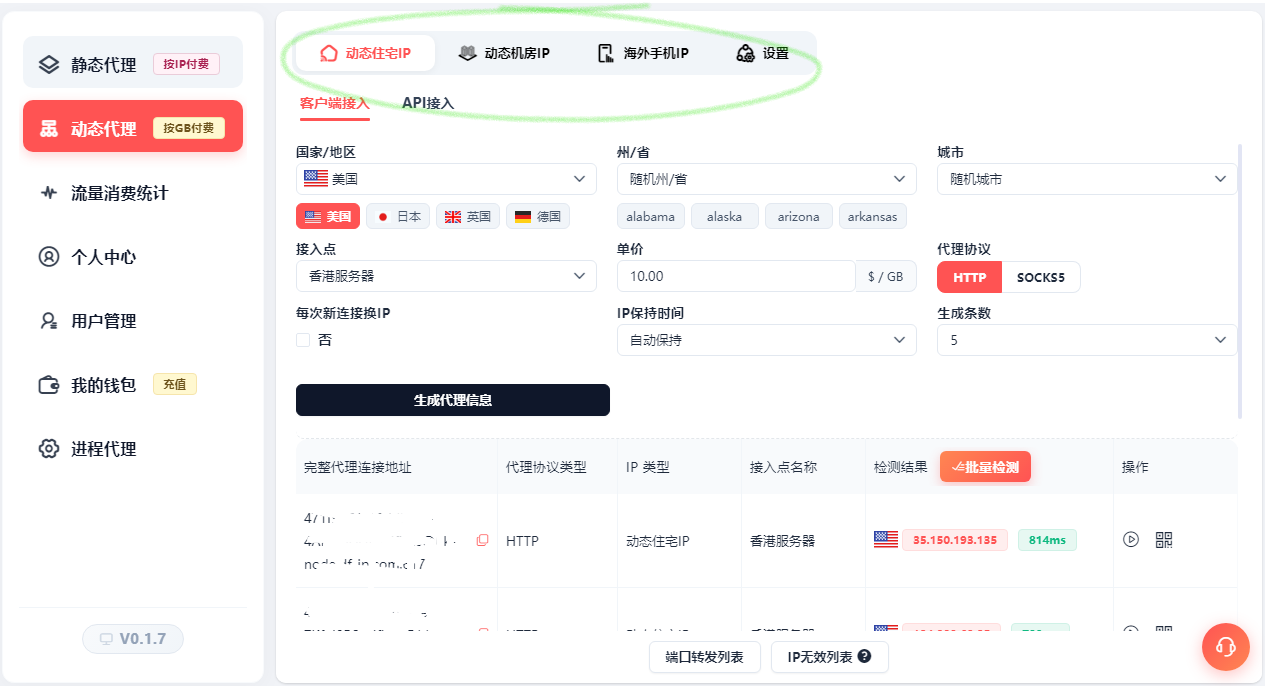
The right side contains three proxy IP generation sections: "Dynamic Residential IP", "Dynamic Datacenter IP", and "Overseas Mobile IP". After selecting a country/region and generating the proxy information, you can copy it to third-party software for use.
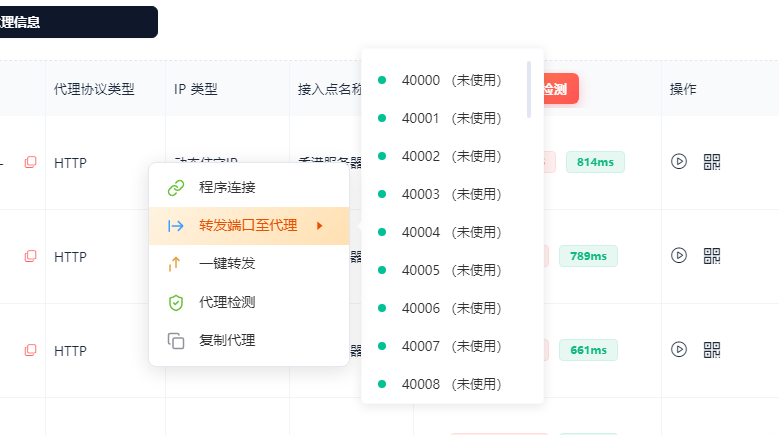
In the right-click menu, you can use "Program Connection" to allow local browsers and other apps to access the internet through this proxy. You can also bind the proxy to a corresponding local port via port forwarding, allowing other programs to use the proxy.