
Configure a DF-IP SOCKS5 Proxy on macOS and Verify the Connection
macOS lets you configure a SOCKS proxy and credentials for an active network service. This guide uses a DF-IP SOCKS5 connection. Wi-Fi and Ethernet are separate services, so review the active service again after switching connections.
Prepare the DF-IP connection
For static residential proxies, copy an active purchased record's IP, matching protocol port, proxy_username, and proxy_password. For dynamic residential proxies, choose the region, protocol, and session options before extraction. The default output is username:password@host:port; preserve the full generated username and password. These are proxy credentials, not your website password or API key.
| Field | Required value |
|---|---|
| Host | Static IP or dynamic gateway, without a URL scheme |
| Port | Static http_port for HTTP or s5_port for SOCKS5; the selected protocol's extracted port for dynamic proxies |
| Username and password | Complete credentials from the same connection; do not mix extraction results |
For automated retrieval, see static record queries and dynamic extraction.
Enter the connection
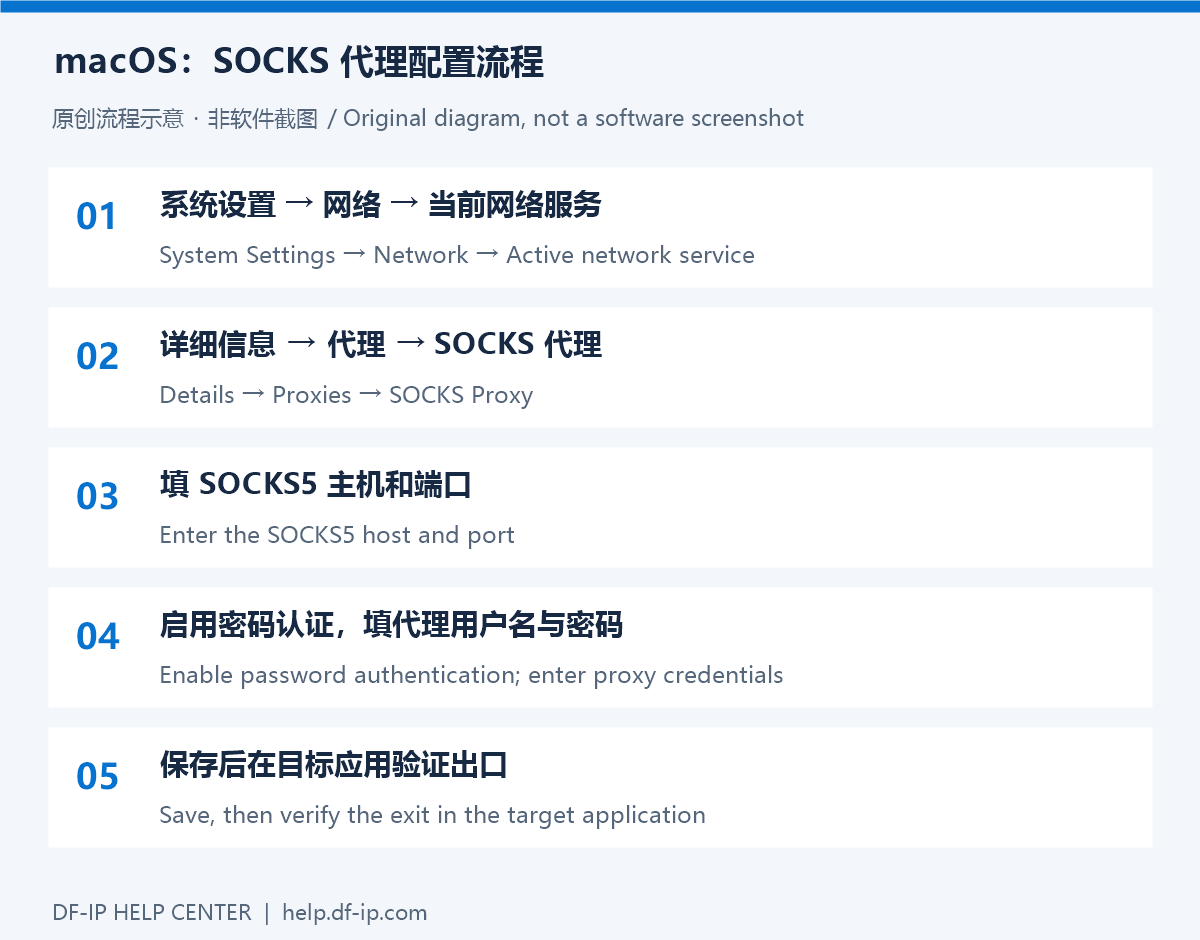
In System Settings, open Network, select the active service, and open Details, then Proxies. Enable SOCKS Proxy, enter its server and SOCKS5 port, enable password authentication, enter the credentials, and save. See Apple's proxy settings reference for the available controls.
Put only the host in the server field. Use s5_port for a static connection or the port extracted after selecting SOCKS5 for a dynamic connection. Preserve the entire generated dynamic username and password rather than copying only a base account name.
Understand the other proxy options
macOS also lists web proxy options. They are separate configuration paths: an HTTPS destination is not a reason to put a SOCKS5 port into a different protocol's field. If you need HTTP, use the delivered HTTP port and configure it according to the application and system requirements. Avoid enabling multiple unrelated options as a guessing exercise.
Verify the actual application
Check the exit IP inside the application you intend to use, then open the real test page. Different results in another program may reflect its own proxy configuration or network implementation. A change made to Wi-Fi does not prove Ethernet is configured too.
Change one factor at a time while diagnosing a failure. Preserve the same extracted connection during a sticky-session test. For credential problems, see authentication troubleshooting; SOCKS clients may show their own authentication error instead of HTTP 407. For a connection that stalls, use the timeout guide.
Restore your previous settings when finished. If SOCKS was previously disabled, turn off the entry added for this test. Get connection details in the DF-IP console, or configure a browser separately using the browser setup tutorials.