
MoreLogin: Set Up DF-IP Static and Dynamic Residential Proxies
Configure DF-IP residential proxies in MoreLogin with field mapping, illustrated setup steps, session guidance, and troubleshooting.
Connect a DF-IP static or dynamic residential proxy to MoreLogin, then launch the configured profile and check its outgoing IP. This guide covers proxy credentials, browser setup, session behavior, and connection troubleshooting.
1. Get a working connection from DF-IP
For static residential service, open your purchased-IP list or record details. Select an active, unexpired proxy and copy its address, protocol-specific port, proxy username, and proxy password.
For dynamic residential service, generate a connection from the residential extraction page after selecting a location, protocol, and session mode. Choose a fixed session with an available duration when you want continuity during a task. Choose random mode when rotation is intended.
The browser needs the delivered proxy connection. Your website password, API key, and extraction URL do not belong in its proxy credentials.
| Browser setting | Static residential | Dynamic residential |
|---|---|---|
| Protocol | HTTP or SOCKS5 supported by the purchased record | The protocol selected during extraction |
| Host / IP / Server | ip_address | The returned host or gateway domain |
| Port | http_port for HTTP; s5_port for SOCKS5 | The returned port |
| Username / Account / Login | proxy_username | The complete returned username |
| Password | proxy_password | The complete returned password |
A missing or zero port is not usable. Visiting an HTTPS website does not by itself require an HTTPS proxy setting: match the proxy protocol to the connection DF-IP supplied.
2. Separate the connection into its fields
The default dynamic output is username:password@host:port. This deliberately non-working example shows the order:
EXAMPLE_USER:[email protected]:12345
Its host is proxy.example.invalid, port is 12345, username is EXAMPLE_USER, and password is EXAMPLE_PASSWORD. Replace every placeholder with your own connection details. Do not paste the entire line into a host-only field.
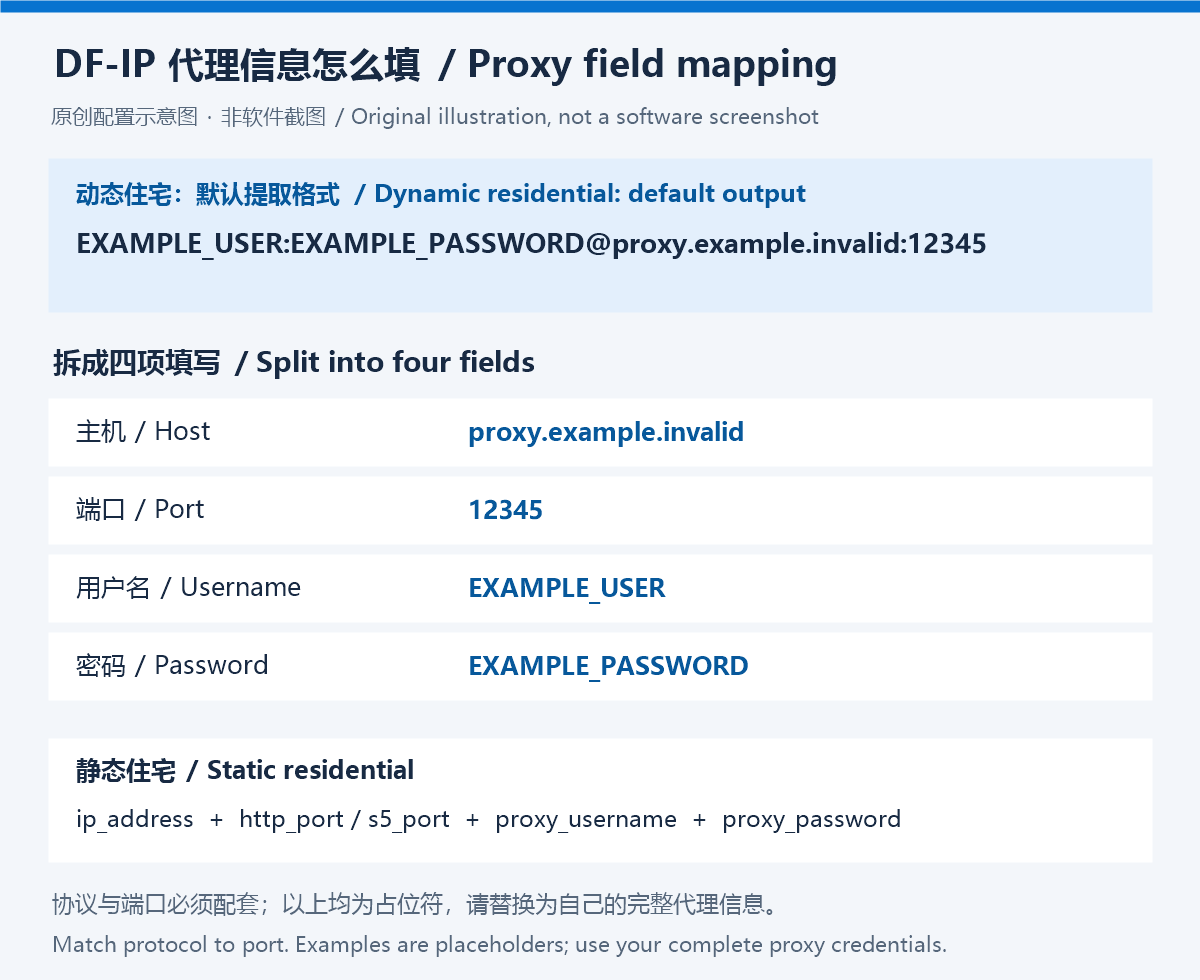
Original DF-IP field illustration, not a browser screenshot. Every displayed value is a placeholder.
If you requested JSON from the API, extract one connection string from the returned array without the surrounding brackets or quotes. A single-line browser form may require a different field order. If credentials contain delimiter characters, use separate inputs when available, or check the browser’s documented input syntax.
3. Configure MoreLogin
- Open Browser under Profiles. Use advanced creation for a new profile, or edit an existing profile’s proxy.
- Add a new proxy with the protocol, server, port, account, and password.
- Run Proxy detection, review the result, and save.
- Start that browser profile from the list.
Navigation reference: MoreLogin official guide. Labels can differ between interface languages and releases.
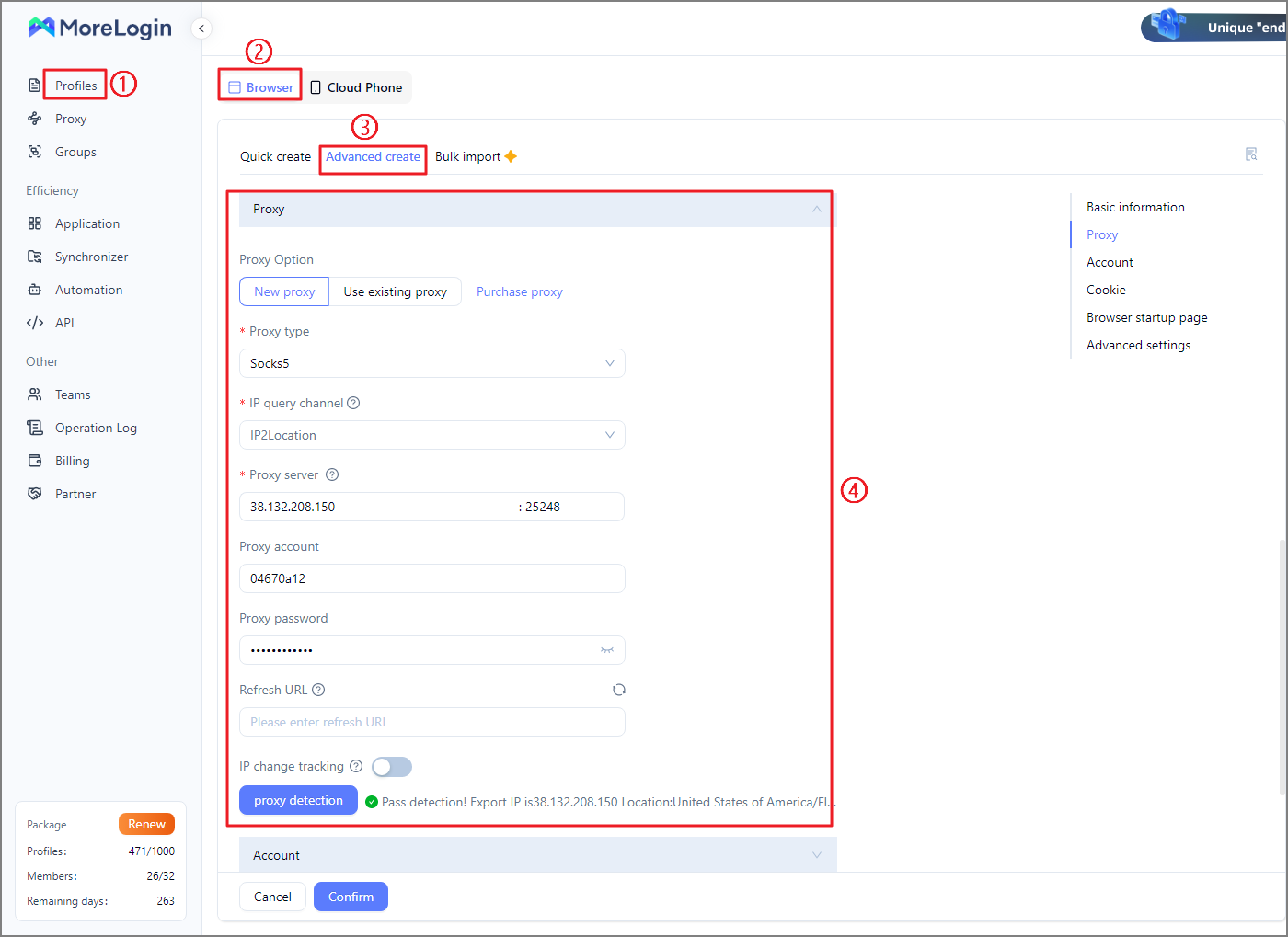
Official MoreLogin interface, shown as a navigation reference. Layout may vary by version. Image source: official guide.
Use a Browser profile for this guide. Leave the refresh URL empty. Selecting another IP lookup database changes the checker, not your DF-IP exit address. The screenshot’s populated address, account, and successful result belong to the official example; they are not your connection details.
4. Keep static connections and dynamic sessions distinct
Static residential: Save the purchased proxy in the intended profile. If replacement or renewal changes the delivered connection details, update that profile too. Resolve expired or inactive records in DF-IP before investigating browser settings.
Dynamic residential: Keep the complete generated username and password. They carry authentication and routing information; removing a suffix or substituting a basic account proxy password can break authentication or change the requested behavior.
Reuse the same extracted connection when continuing a session. A fixed session is not a permanent-IP guarantee, and generating another connection may create another session. For API users, the session option corresponds to is_rand=0 with a supported ip_duration; random mode uses is_rand=1. See the dynamic extraction reference for parameters.
Leave any optional rotation or refresh URL empty for this integration. DF-IP’s extraction endpoint is not a callback for rotating an existing browser connection. To switch deliberately, generate the intended connection, update the profile, and restart it.
5. Verify the profile and diagnose failures
First run the browser’s proxy check. Then launch the profile you just configured and open an IP-check page and an ordinary website inside it. Confirm that pages load and that the exit country matches your selection. Testing in a separate everyday browser does not verify this profile.
A dynamic gateway host can differ from the IP websites see. City labels can also differ between IP databases, so neither difference alone proves that the proxy is misconfigured.
| Symptom | What to inspect first |
|---|---|
| Authentication failure or HTTP 407 | Full credentials, extra spaces, and accidental use of a website password or API key |
| Timeout or connection failure | Protocol/port pairing, static expiry, available dynamic quota, and network access to the gateway |
| Checker passes but a website fails | Correct profile selection, the target website, DNS, and local network behavior |
| Exit changes sooner than expected | Random mode, a newly generated session, or an elapsed session duration |
| Unexpected location | Extraction location, complete routing credentials, and the lookup database |
Use 127.0.0.1 only if you actually operate a local forwarding proxy. Hide real credentials before sharing troubleshooting screenshots.
Verify the connection in your own network and browser profile. A successful checker result describes that check, not guaranteed access to every website.
Related guides
- Static Residential API: Purchased IPs and Connection Fields
- Dynamic Proxy API: Generate Connection Details
- 中文:MoreLogin代理配置教程
Documentation checked: September 13, 2026.